
01 · Local faces, people cards
Point at photo/video folders; detect and cluster faces on this PC. No camera, no ID check, no stranger watchlist.
Namecall · 6.5.7
On this PC · Sort by person · Time-machine film
Namecall is a Windows-local family photo studio: it analyzes the folders you choose, groups people on this PC, then turns one person’s years into a soundtracked time-machine film you can remake. Photos are not uploaded. No camera. No account.
Three jobs: recognize people locally, browse by person (rename, dates, sets), and make a time-machine film (era-aware picks; standard edition up to about 90 s vertical MP4). With a Pro license and dependencies, results can continue as a JianYing draft.
It does not turn on your camera, upload the family library by default, or auto-delete originals. It does not replace your backup plan. It is not a cloud album and not a CapCut/JianYing replacement — it fills the middle: recognize → pick eras → film.
Download Namecall for Windows See the UI
On this PC · Photos stay local · Sort by person · Remake the film anytime
Last updated: November 2026
| One line | Recognize locally, sort by person, make a time-machine film |
|---|---|
| Platform | Windows 10 / 11 (64-bit) desktop |
| Upload | Photos and face features stay local; network for updates + optional place lookup |
| Output | Standard: ~90 s vertical MP4; Pro may add JianYing draft when licensed |
| Account | None |
| Scale | About 50k photos / 200k faces |
| Version | 6.5.7 |
| Download | https://www.knowpress.cn/en/download |
Scanning, face clustering, the people library, time-machine render and local music run on this PC. Photos, videos and on-device face features for grouping are not uploaded.
Network use is limited to update checks and optional place lookup from GPS you already have.
No camera, no live monitoring, no identity verification, no stranger watchlist.
Originals are never auto-deleted; only a confirmed Move leaves the old folder.
The in-app Usage Statement is authoritative.

Point at photo/video folders; detect and cluster faces on this PC. No camera, no ID check, no stranger watchlist.
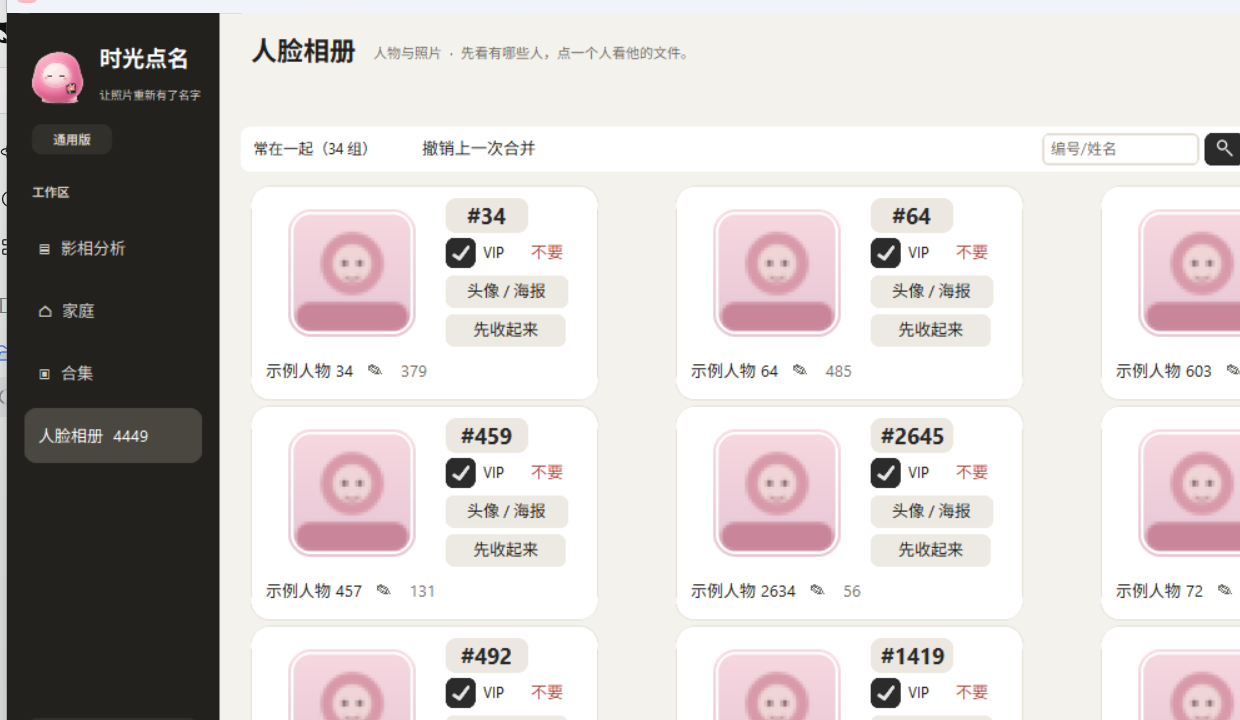
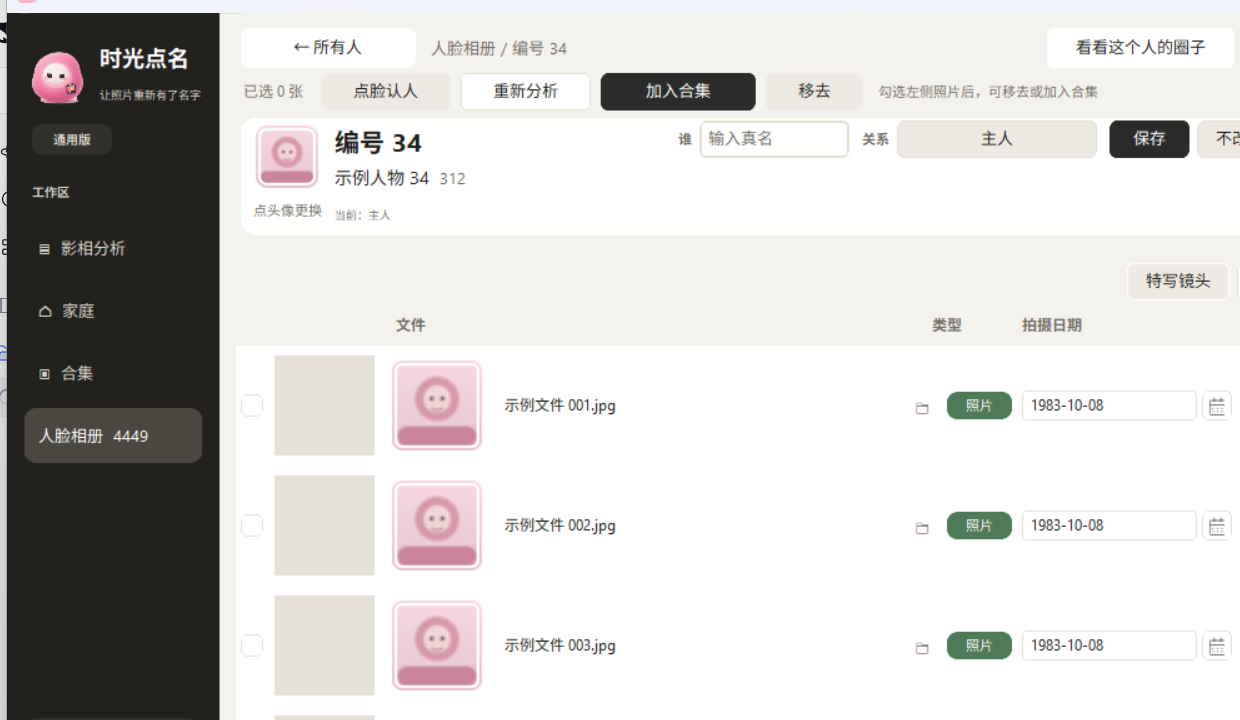
Open someone to see their photos and videos; rename, set a cover, add to sets. Official scale: about 50k photos / 200k faces.
Era-aware picks prefer clear, frontal faces; vertical film with local music or silence. Standard edition: up to about 90 seconds (~62 shots + ending).
EXIF / container metadata, then filename dates, then file mtime; you can edit shoot dates in the album (index only — originals’ EXIF unchanged).
Person numbers, names, family, sets and events follow how households sort photos.
Standard edition outputs MP4 you can remake. Pro may export a JianYing draft when license and environment allow.
Try a few hundred to a couple thousand photos first — not the whole NAS. Originals are not auto-deleted.
Scanning creates person numbers; you choose real names. Start with five people you see often.
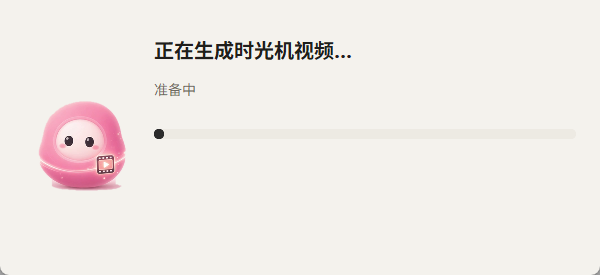
Pick direction (forward / reverse) and music; render about 90 s vertical. Remake if needed.
Screenshots from a real install; names and filenames are samples, faces are anonymized. Counts, dates, buttons and layout are from the live UI.

Scan and render time depend on library size and this PC.
No photos, videos, or on-device face features for grouping. Network is for updates and optional GPS place lookup.
No. It only reads files in folders you choose — no camera, no live monitoring, no ID check.
Standard edition outputs vertical MP4 (within about 90 s). Remake with new picks or music. Pro aims at a JianYing draft when licensed.
Standard edition caps near 90 s (~1.4 s per shot plus ending, up to ~62 shots). Pro may not truncate — check your license.
Every file is read, faces detected, features extracted and clustered. Larger libraries take longer; later launches are faster. The welcome screen stays until prep finishes.
EXIF / container, then filename, then file mtime; you can edit dates in the list. Edits go to the local index, not original EXIF.
Never automatically. Only a confirmed Move leaves the old folder. Remove-from-person does not delete files.
Organize, browse, time-machine and local music work offline. Update checks need the network.
Standard focuses on local organize + ~90 s time machine. Longer films and JianYing drafts are Pro/license features.
About 50k photos / 200k faces. Speed depends on CPU, disk, resolution and whether video is analyzed.
6.5.7 is Windows desktop. Other platforms follow later official releases.
No. It manages indexes and organize results. Protect originals with your own drive, NAS or backup service.
Recognize locally → browse by person → make an ~90 s time-machine film. Photos stay on this PC.